Flex uses your phone number and an SMS verification code to log in—there’s no password!
How to log into your Flex account with the Flex app
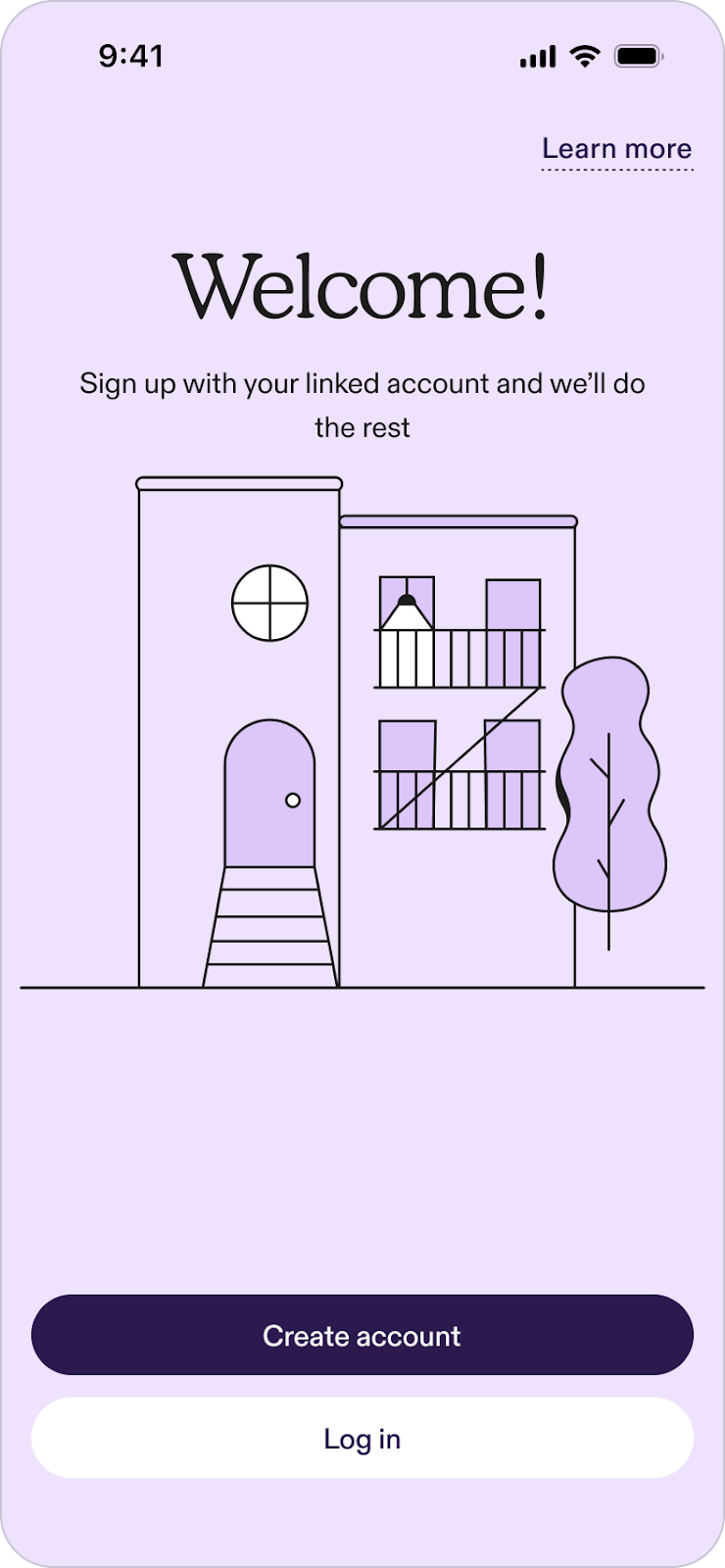
- Open the Flex app (available on iOS and Android).
- Log in: Tap the Log in button at the bottom of your screen.
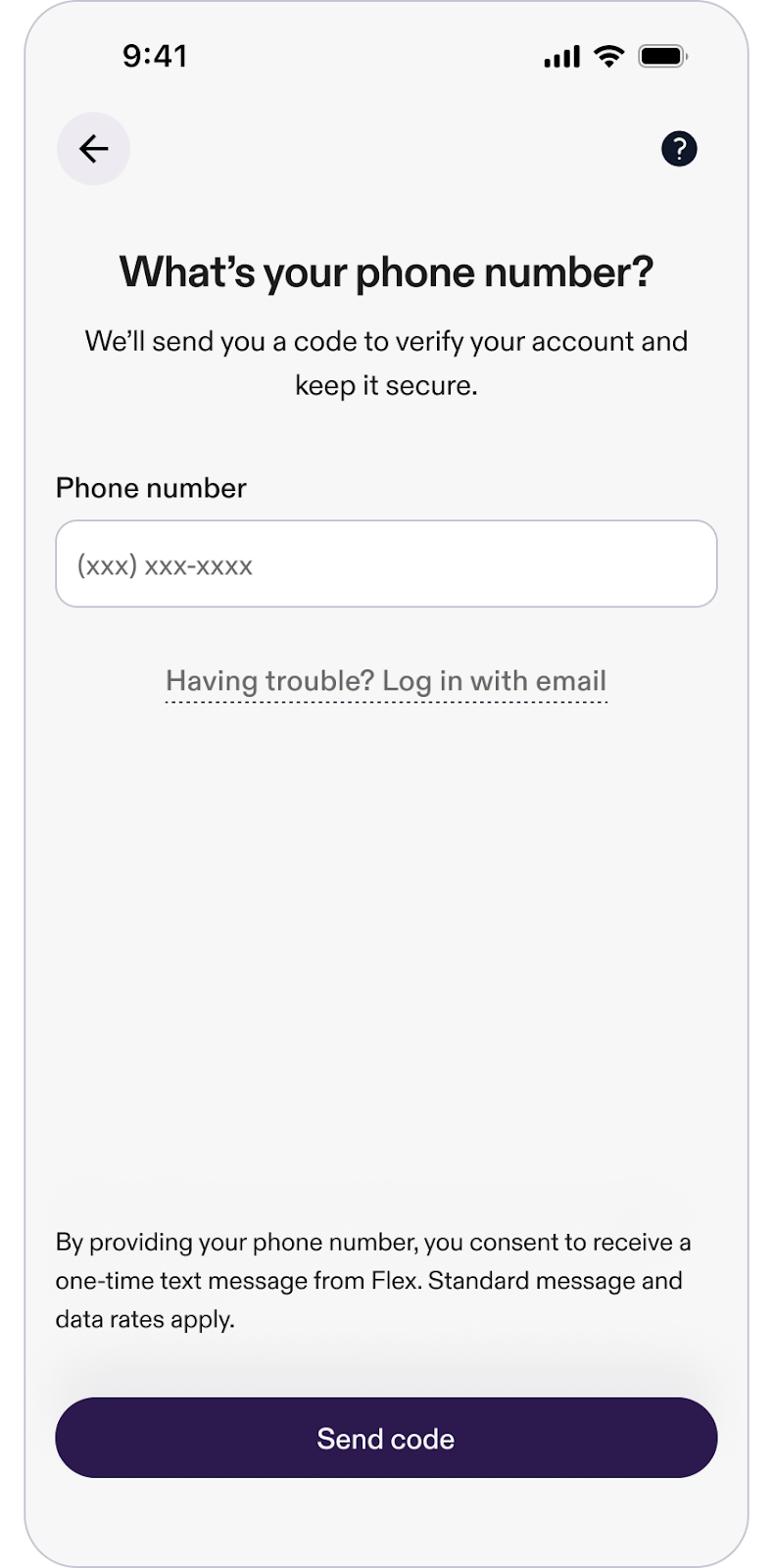
- Enter phone number: You’ll be prompted to enter your phone number. After entering it, a verification code will be sent to you.
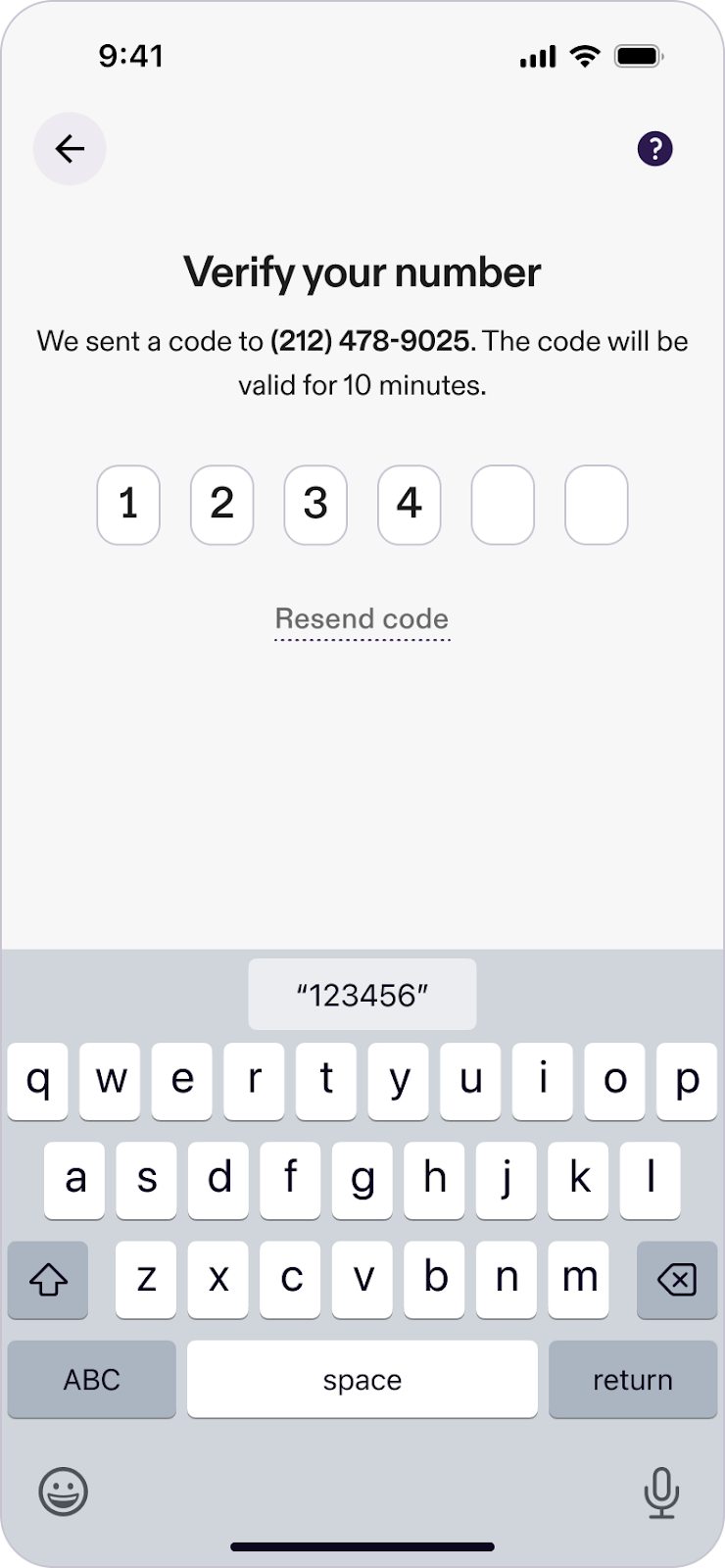
- Verify and access: Enter the verification code to securely log into your Flex account.
Trouble accessing your account due to a phone number change?
If you’re having trouble accessing your Flex account because your phone number has changed, follow these steps to recover your account:
- Access account recovery: On the login screen, tap the Having trouble? Log in with email option.
- Provide account information: Enter the original phone number associated with your account.
- Email verification: Then, enter the email address linked to your Flex account.
- Check your email: You’ll receive an email with a recovery link.
- Regain account access: Click the link in the email to be automatically redirected and logged into the Flex app.
Common questions
What if I don't receive my verification code?
If you don’t receive your verification code, first check that you entered the correct phone number. If your phone number is correct and you still don’t receive a code, select Having trouble? Log in with email on the login screen. You can also contact our support team for help.
What if I’ve been locked out of my Flex account?
If you can’t log in with your phone number, tap Having trouble? Log in with email on the login screen. Enter the original phone number and email address linked to your Flex account. We’ll send a recovery link to your email so you can log back in.
Can I log in on a desktop or web browser, or only through the app?
To access your Flex account, log in through the Flex app (available on iOS and Android).
How do I change the phone number on my Flex account?
If you need to update or change your phone number, you can learn more in this article: Updating account information.